
Gamepad Tester – Detect Stick Drift & Deadzones online
Real-time button detection, analog stick precision, trigger pressure, vibration testing and more all in your browser. No downloads required
- Button Testing
- Input Latency
- Stick Drift tester
Button Mapping Presets
Select a controller preset and toggle between default & custom mapping views
No saved mappings yet. Save your current setup above.
Advanced GamePad Tester
Everything you need to fully diagnose and verify every part of your controller’s performance.
Button Test
Test every button on your controller for responsiveness and accuracy
Connection Stability
Analyze connection stability and signal strength
Deadzone Test
Measure and calibrate analog stick dead zones
Latency Test
Measure your controller's input lag and your reaction time
Stick Drift
Detect unwanted analog stick movement and drift. Leave sticks untouched while monitoring.
Trigger Pressure
Test trigger sensitivity and measure analog pressure levels
Controller Vibration Test
Check rumble motor functionality and haptic feedback patterns
How to connect your controller
Your controller connects the same way it normally would , USB cable into your PC, or pair it over Bluetooth the way you usually do. Once it’s connected, just press any button on the controller and this page picks it up straight away. No installs, no drivers, nothing to download.
The button press is required by the browser for security , it’s not a bug. After that first press, every input shows up in real time: button presses, analog stick movement, trigger pressure, and vibration. You can even plug in up to four controllers at once and test them side by side
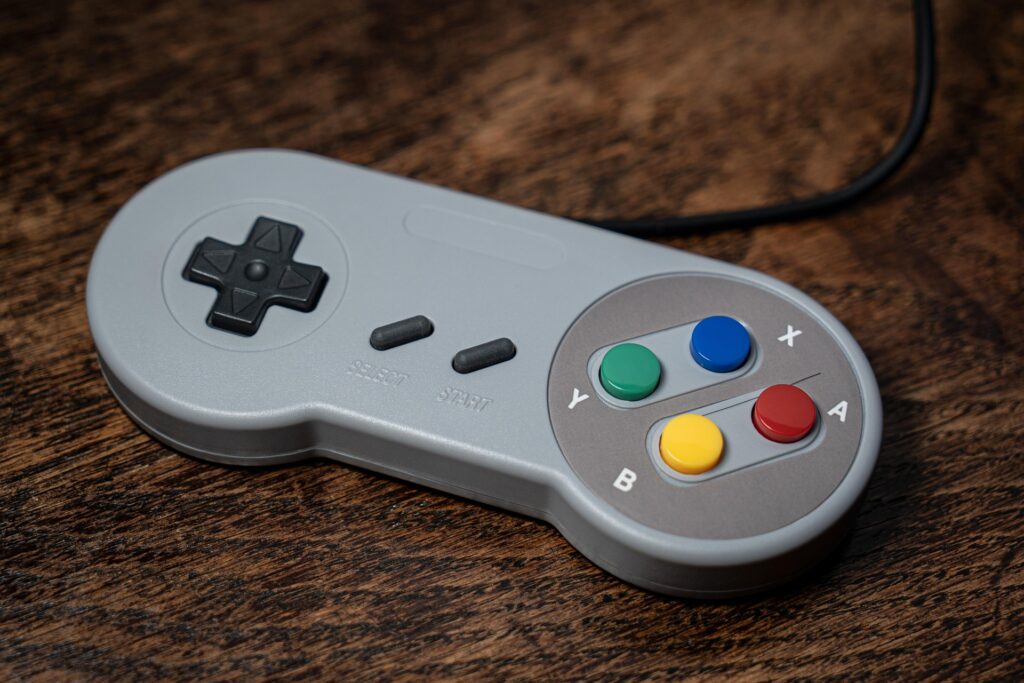
The Best Free GamePad Tester
10K+
Controllers tested
5+
Controller types
100%
Free Testing
24/7
Available
Understanding your controller health score
After running the test, you get a health score out of 100. Think of it like a report card for your controller — it checks everything at once and gives you one clear number. The score is based on how accurately your buttons register, how stable your analog sticks are at rest, how responsive your triggers are, and whether any drift is detected.
It’s not just a pass or fail. A score in the 90s means your controller is in great shape. Somewhere in the 70s is still fine for casual gaming. Drop below 50 and you’ll probably notice problems in-game — missed inputs, a character moving on its own, or triggers that feel off.
All inputs accurate. No drift detected. Good to go.
Minor wear. Fine for most games and casual use.
Some issues showing. May affect gameplay noticeably.
Significant problems. Consider repairing or replacing.
Got a low score? Don't panic — it doesn't always mean the controller is done. Stick drift is often the main culprit and can sometimes be fixed with a clean or a simple repair. Check our stick drift guide before you give up on it.
What is stick drift — do you have it?
It’s one of the most common controller problems. And most people don’t realise they have it until it’s bad.
Stick drift is when your analog stick sends movement signals to the game without you touching it. Your character walks on their own. The camera slowly pans to one side. A menu keeps scrolling. You’re not pressing anything — but the game thinks you are.
It usually starts small enough to ignore. Then one day it’s impossible to play around. The cause is almost always a worn-out sensor inside the joystick module — the tiny component that reads where your thumb is. Dust, sweat, and just regular use gradually break it down over time.
Character moves by itself
Walking or running in a direction without any input from you
Camera slowly drifting
The view gradually pans or rotates on its own mid-game
Menus won't stay still
Cursor or highlight keeps moving when you're not touching the stick
Aim pulls to one side
Your aim or crosshair slowly drifts even when your thumb is off the stick
Not sure if you have it? Our free stick drift test shows you exactly what your analog stick is doing at rest — in real time, no guessing.
Test for drift free →
Compatible browsers and operating systems
This tool runs entirely in your browser using the Web Gamepad API — a built-in feature that modern browsers support natively. That means nothing to install, no extensions, no plugins. Just open the page, plug in your controller, and it works.
Chrome and Edge give you the full experience every feature works including vibration testing. Firefox picks up buttons and sticks but doesn’t support rumble. Safari doesn’t support the Gamepad API at all, so if you’re on a Mac, switch to Chrome first. iOS isn’t supported either for iPhone and iPad users, Android on Chrome is your best option.
Chrome
All features including vibration
Edge
All features including vibration
Firefox
Buttons and sticks only, no rumble
Safari
Gamepad API not supported
Windows 10 / 11
USB and Bluetooth, full support
macOS
Use Chrome or Edge, not Safari
Linux
Works via USB on Chrome
Android
Chrome only, USB OTG or Bluetooth
iOS / iPadOS
Safari blocks Gamepad API
Quick tip: If your controller shows up but then disappears, it usually means the browser lost the connection. Just press any button on your controller again and it'll reconnect straight away — no need to refresh the page.
Why test your controller?
Because problems with a controller are easy to miss — until they cost you a match.
Most controller issues don’t announce themselves. Stick drift starts small — a tiny movement here, a slightly off camera there. A button that’s losing sensitivity feels almost normal until one day it just doesn’t register. By the time you notice something is wrong, it’s usually been wrong for a while. Testing takes less than a minute and tells you exactly what’s going on before it becomes a real problem.
Buying a used controller
Don't take the seller's word for it. Test it yourself and know exactly what you're getting before you pay.
Competitive gaming
Even tiny amounts of drift or input lag can cost you in ranked matches. Know your gear is working properly.
After a repair
Just got your controller fixed or cleaned? Confirm the repair actually worked before you start playing again.
Something feels off
Character moving on its own, buttons misfiring, triggers feeling strange — find out in seconds what's actually wrong.
Multiple controllers at home
Got a few controllers lying around? Test them all and find out which ones are still in good shape.
New PC setup
Making sure your controller is properly recognised by your PC and all inputs are mapping correctly.